
Lumos MCP: Security & Authentication
Overview
The Lumos MCP server lets your users work with Lumos from inside the AI assistants they already use, such as Claude. Today they can search the App Store, request access, and check the status of their requests without leaving the assistant. Every action runs through Lumos's normal authentication, permission, and audit pipeline.
- It is an OAuth-protected MCP endpoint that AI clients connect to.
- Every call runs as the authenticated user. There is no shared service account and no agent-owned identity.
- Users sign in through your IdP, review a consent screen, and grant access to a specific, named set of actions.
- Activity is recorded in your Lumos Activity Log, and forwarded to your SIEM if you use Lumos SIEM export.
What Lumos MCP is
Lumos MCP is a remote server that speaks the Model Context Protocol, an open standard for connecting AI assistants to external services, supported by clients such as Claude, Claude Code, Codex, and Gemini CLI. When a user connects their AI client to Lumos, the assistant gains a small, well-defined set of tools it can run on the user's behalf, after the user signs in and grants consent.
Lumos runs two MCP servers behind one shared OAuth authorization server:
- User server, live today at
https://api.lumos.com/mcp/user, with tools for searching the App Store and requesting access. - Admin server, coming soon at
https://api.lumos.com/mcp/admin, with tools for administrative tasks such as configuring the App Store and managing access reviews.
This document describes the security model, which is the same across both servers.
Why it's safe to approve
- Real identity on every call. The user signs in through your IdP. Audit entries show a real person, not a bot account. There is no shared service account and no standalone agent identity.
- Least privilege by default. A token's rights are the intersection of the scopes the user consented to and the permissions their Lumos role already grants. An assistant cannot do more through MCP than the user's role allows.
- Offboarding cuts off access automatically. When you deactivate a user in Lumos, their MCP access stops with them. Calls are denied from the next call on because the account no longer holds the underlying permissions, and any active access token expires within the hour.
- A familiar OAuth posture. This works like any other OAuth-connected enterprise app in your environment. Same sign-in, same consent model, same audit shape, built on published standards. See the technical overview below for the specifics.
What your users see
The first connection
The first time a user asks their assistant to do something in Lumos, the assistant opens a Lumos sign-in page in their browser. The user signs in through your IdP, the same way they sign into Lumos today, and then reviews a consent screen.
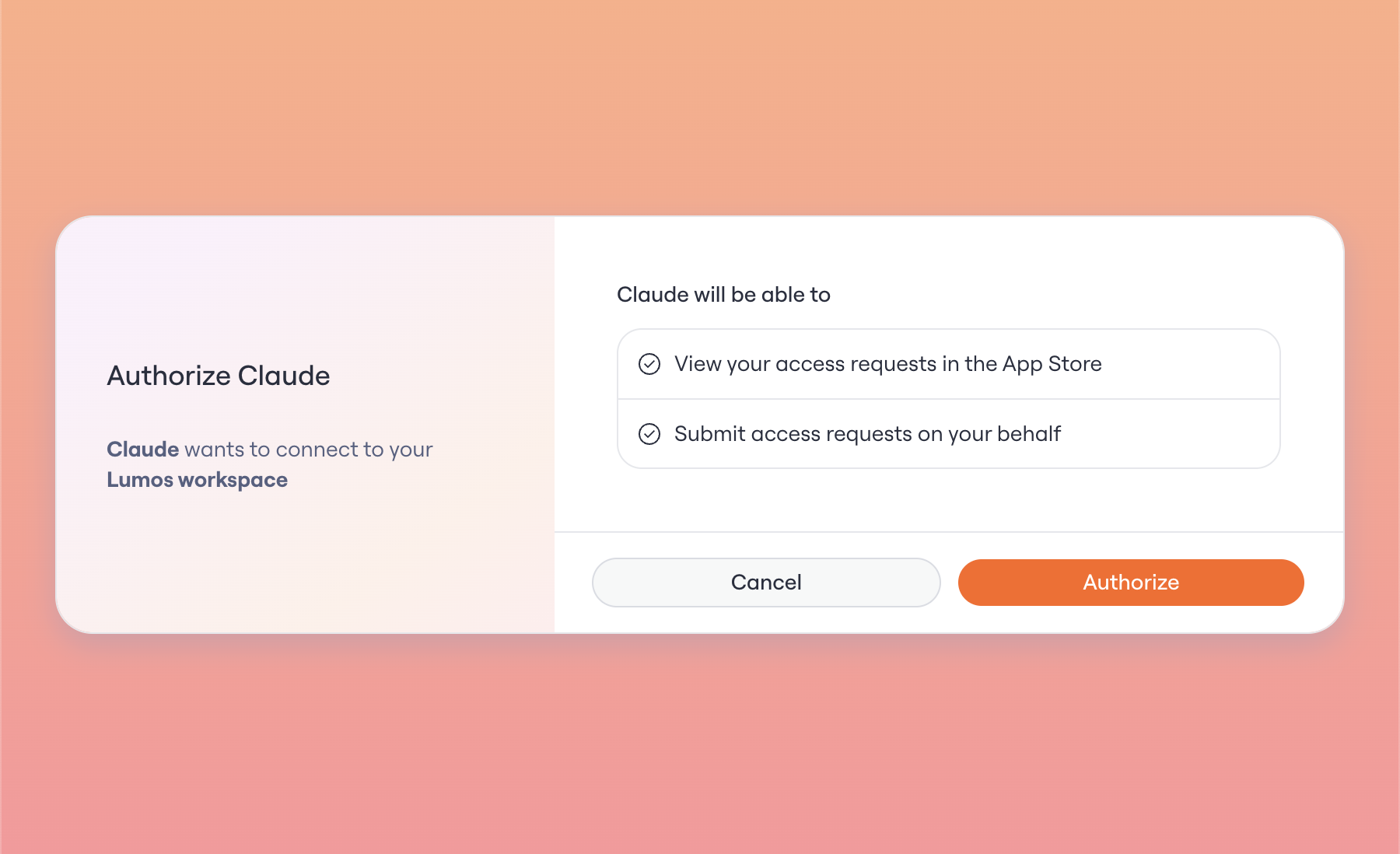
The consent screen names the client requesting access and lists exactly what it can do. The user approves or denies. After approval, they return to the assistant and the action completes.
After the first time
The assistant refreshes access in the background, so the user does not sign in on every call. They are prompted again only if the client requests a new scope, their access has ended, or the refresh window has expired.
How access ends
- Tokens are time-bound. Access tokens last one hour and refresh tokens last up to 30 days, sooner if the connection sits unused. After that, the user signs in again.
- Deactivating a user in Lumos stops their MCP access. Every call is re-checked against the user's current permissions, so calls are denied from the next call on, and any active access token expires within the hour.
- A user can disconnect Lumos in their AI client at any time. Clients that support OAuth revocation invalidate the token when they disconnect.
Setting up a client
End users connect their own client. For step-by-step setup covering Claude, Claude Code, Codex, Gemini CLI, and other clients, see Connect to the Lumos User MCP Server.
Technical overview
For security leads who want to verify the implementation.
Protocol and standards
- MCP over HTTPS.
- OAuth 2.1 Authorization Code grant with PKCE (RFC 7636). PKCE is required, and only the S256 challenge method is accepted.
- Authorization Server metadata at
/.well-known/oauth-authorization-server(RFC 8414). - Protected Resource metadata at
/.well-known/oauth-protected-resource/mcp/user(RFC 9728). - Dynamic Client Registration (RFC 7591) and client management (RFC 7592).
- Token revocation (RFC 7009).
- Resource indicators (RFC 8707).
- Loopback and native-app redirects follow RFC 8252.
Endpoints
| Role | URL |
|---|---|
| Authorization server | https://b.app.lumosidentity.com |
| User MCP server | https://api.lumos.com/mcp/user |
| Admin MCP server | https://api.lumos.com/mcp/admin (coming soon) |
Sign-in and consent happen on the authorization server (b.app.lumosidentity.com), Lumos's identity domain. The MCP servers themselves live on api.lumos.com. Allowlist both when you scope network or certificate rules.
Tokens
| Token | Lifetime | Notes |
|---|---|---|
| Authorization code | 60 seconds | Single use, bound to the PKCE challenge |
| Access token | 1 hour | Opaque, SHA-256 hashed at rest |
| Refresh token (absolute) | 30 days | Counted from first issue and preserved across rotations. After this, the user signs in again. |
| Refresh token (idle) | 7 days | A refresh token left unused for 7 days expires. |
Lumos stores only SHA-256 hashes of tokens. The raw access and refresh tokens exist only at the moment they are issued to the client. They are never written to the database or to logs.
Refresh tokens rotate on every use, and a rotated token cannot be reused. If a rotated token is replayed after a short grace window of about 30 seconds, which absorbs benign network retries, Lumos treats it as a theft signal and revokes every token in that grant. The legitimate client then signs in again to reconnect.
Resource binding
Each access token is bound to a single MCP resource. A token issued for /mcp/user carries that resource and is checked on every call. A token presented to a different MCP endpoint than the one it was issued for is rejected with a 401. Lumos also validates the resource when the user consents, so a misconfigured client fails at the consent screen instead of minting a token that breaks on its first call.
Authorization
Authorization runs in two layers.
- OAuth scopes are the public, client-facing contract. They are coarse on purpose.
- Lumos permissions, derived from the user's role, are the fine-grained server-side check.
A token's effective rights are the intersection of the two: the scopes the user consented to, narrowed by the permissions their role grants. If a user consents to a scope their role cannot satisfy, the related tool call is denied at call time. Consent never grants more than the role allows.
Scopes
| Scope | Shown on the consent screen | Grants |
|---|---|---|
lumos:user:read | View your access requests in the App Store | View access requests |
lumos:user:write | Submit access requests on your behalf | Create access requests |
Client registration
Lumos supports Dynamic Client Registration so MCP clients can register themselves.
- Public clients (native apps and CLIs) authenticate with PKCE alone and receive no secret.
- Confidential clients register with
client_secret_basicand receive a secret that Lumos stores only as a hash.
Redirect URIs are validated at registration. A redirect URI must use HTTPS, a loopback http address (localhost, 127.0.0.1, ::1) for local development, or a native-app private-use scheme such as claudeai://. Schemes a browser would treat as code execution or local file access (javascript, data, file, and similar) are rejected.
Registration is open, but registering a client grants no access on its own. Before any tool runs, the end user signs in through your IdP and approves a consent screen, the resulting token is bound to one resource, and every call is narrowed to the user's role permissions. A client that registers but is never authorized by one of your users can do nothing.
The client name shown on the consent screen is self-reported at registration, so users should approve only connections they started themselves and clients they recognize.
Audit
MCP activity flows into your existing Lumos Activity Log. If you forward Lumos activity to a SIEM, MCP activity flows through that same export, with no separate pipeline to configure.
Every MCP tool action is recorded as an Activity Log entry, tagged so you can tell it came from an AI agent over MCP rather than from the Lumos web app. An access request submitted through MCP lands in the same access-request trail as one submitted in the UI. It is the same record, just marked with its MCP origin, so there is no separate shadow trail to reconcile.
Each entry carries the standard Activity Log fields: the user who acted, your domain, the timestamp, the action, the object it affected, and the outcome. MCP-initiated entries add a provenance block:
| Field | What it tells you |
|---|---|
invocation_source | Marks the entry as MCP-initiated (always mcp) |
mcp_tool | Which MCP tool ran, for example submit_access_request |
oauth_client_id | The registered OAuth client that made the call |
oauth_app_name | The client's display name, for example Claude |
oauth_scopes | The scopes the user consented to for the call |
outcome_detail | A short, user-safe reason when a call does not succeed |
Your SIEM receives these provenance fields and the standard entry fields above, and nothing more. The content of a request and the data an agent passes to a tool are not part of the feed.
Never logged
Lumos never logs access tokens, refresh tokens, authorization codes, or client secrets. Only SHA-256 hashes of tokens are stored.
What you can monitor
From the logged fields you can track:
- MCP adoption: how many requests come through MCP, and from which users.
- Which AI clients and apps are acting on your users' behalf.
- Success and failure outcomes, broken down by user and domain.
Availability and support
The user MCP server is available now. There is no domain-level setting to turn on. Access is governed per user by OAuth and Lumos role permissions, so a user can connect as soon as they have a Lumos account and a supported client.
To roll this out, share the setup guide with your users: Connect to the Lumos User MCP Server.
For help with setup, questions about the integration, or to raise a security concern, contact your Lumos representative or Lumos Support.
Updated 5 months ago